How To Generate PIN For HSBC Debit Card UAE: Complete Guide For 2027
How To Generate PIN For HSBC Debit Card UAE. Losing access to your online banking because of a PIN issue is more common than most people think. Every week, thousands of HSBC customers in the UAE search for a simple answer to one question: how do I set up or generate a PIN for my HSBC debit card and how does the Secure Key system actually work?
This guide breaks the entire process down into small easy steps. No banking jargon, no confusing terms just plain, simple way that anyone can follow, whether you are opening your first HSBC account in Dubai, Abu Dhabi or Sharjah or you have been an HSBC customer for years and just switched to a new phone.
By the end of this article, you will know exactly how to activate your Digital Secure Key, create your PIN, fix common login problems and understand the difference between the old physical Secure Key and the new app-based system. Let’s get started.
Quick Summary: What You’ll Learn in This Guide
| Topic | What It Covers |
|---|---|
| Digital Secure Key | What it is and why HSBC UAE uses it |
| PIN Creation | Step-by-step process to create your 6-digit PIN |
| Activation Steps | How to turn on the Digital Secure Key on your phone |
| Physical to Digital Switch | How to move away from the old plastic Secure Key device |
| Common Problems | Forgotten username, password reset, lost Secure Key |
| Using the App | Login codes, transaction codes, re-authentication codes |
| Card Limits | ATM and purchase limits for each account type |
| Card Benefits | Perks that come with your HSBC debit card |
Read Also: UAE Emergency Numbers: Complete Guide to Helpline List
What Is a Digital Secure Key?
The Digital Secure Key is a security feature built directly into the HSBC UAE mobile banking app. Think of it as a digital lock and key that sits inside your phone. Every time you log in to online banking, make a payment, or change your personal details, the app asks you to prove it’s really you. It does this by generating a one-time password (OTP), also called a security code.
This is a big upgrade from the old system, where customers had to carry around a small physical device (the physical Secure Key) just to generate these codes. Now, everything happens inside the app, using either your 6-digit PIN or your fingerprint/face recognition.
Why HSBC UAE Moved to a Digital Secure Key
Before we jump into the steps, it helps to understand why this change matters:
- Convenience: You no longer need to carry a separate device.
- Speed: Codes generate instantly inside the app.
- Extra protection: Biometric login (fingerprint or face ID) adds another safety layer.
- Fewer lost items: A physical Secure Key can be misplaced. Your phone is always with you.
- Better fraud prevention: Codes expire quickly, reducing the risk of someone reusing them.
Now let’s look at how you can actually set this up.
How to Create Your PIN and Register on the HSBC UAE App
If you are a brand-new user, the very first step is registering on the app and creating your 6-digit PIN. This PIN becomes the key to everything logging in, generating codes and approving transactions.
Step 1: Confirm Your Details
Open the HSBC UAE app and enter your customer number, credit card number, or debit card number, along with your date of birth. This confirms that you are the rightful account holder.
Step 2: Take a Photo of Your ID
You will be asked to upload clear photographs of the front and back of your Emirates ID or passport. Make sure the lighting is good and all text is readable.

Step 3: Take a Selfie
Next, the app will ask you to take a quick selfie. This step confirms that the person registering is really you, matching your face against your ID photo.
Step 4: Create a PIN
Finally, you will create a memorable 6-digit PIN. This PIN is what you will use every time you log on to the app and every time you generate a security code. Choose something you can remember easily, but avoid obvious combinations like your birth year or repeated digits.
Tips: Never write your PIN down anywhere, and never share it with anyone, including someone claiming to be from HSBC. The bank will never ask for your PIN over the phone or email.
How to Activate the Digital Secure Key
Once you’re registered, activating the Digital Secure Key is quick. Here’s how it works, depending on whether you are a new or existing app user.
For Existing App Users
- Make sure you have downloaded the latest version of the HSBC UAE app (Android or iOS).
- Log in using your existing 6-digit PIN or biometrics (fingerprint/Face ID).
- When prompted, select the option to switch to the Digital Secure Key.
- Confirm the activation on the next screen.
That’s it your Digital Secure Key is now active.
For New App Users
- Download the HSBC UAE app from the App Store or Google Play.
- Register using your account details, as explained in the previous section.
- Log in with your newly created PIN.
- When the activation prompt appears, follow the on-screen steps to enable the Digital Secure Key.
Important note: If you choose to opt out of the Digital Secure Key, your access to certain features of the HSBC UAE app may be restricted. It’s strongly recommended to activate it for full functionality.
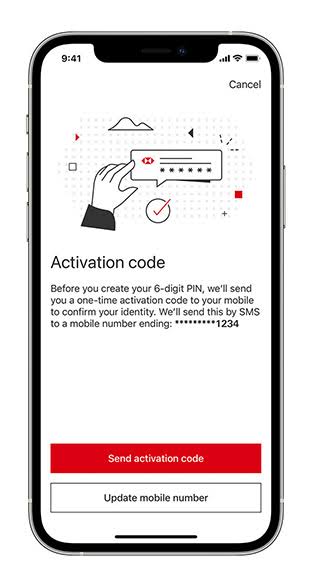
Switching From Physical Secure Key to Digital Secure Key
Many long-time HSBC customers still have the old physical Secure Key device. The good news is that switching to the digital version is simple and doesn’t require the physical key at all.
- For existing users: Log in to the app and select “Confirm and continue” when prompted to activate the Digital Secure Key.
- For new users: Download the app, complete registration, and activate the Digital Secure Key directly this automatically replaces the need for a physical device.
Once your Digital Secure Key is active, your old physical Secure Key becomes inactive automatically. You don’t need to use both.
What to Do With Your Old Physical Secure Key
After switching, dispose of the old device responsibly, or better yet, return it to your nearest HSBC UAE branch. This helps prevent any misuse and keeps your banking secure.
How to Use the Digital Secure Key
Now that your Digital Secure Key is active, here’s exactly how to use it for different banking actions.
Logging In to Online Banking
- Open the HSBC UAE app.
- Make sure your Digital Secure Key is active.
- Select “Generate a code.”
- Choose “Log on to online banking.”
- Enter your 6-digit PIN or use biometrics.
- A security code will appear on your screen.
- Enter this code on the online banking login page.
Generating a Transaction Verification Code
- Open the app and follow the same initial steps as logging in.
- Select “Transaction Signing” instead of the login option.
- Enter the transaction digits requested (usually the last few digits of the account or card involved).
- A code will be generated enter it on the online banking page to confirm your transaction.
Creating a Re-authentication Code
- Open the app and generate a code as usual.
- Select “Re-authenticate code.”
- Enter this code wherever the online banking page requests re-authentication.
How to Use the Physical Secure Key (For Those Still Using It)
Not everyone has switched over yet, so here’s what to do if you’re still relying on the physical Secure Key device.

If You Lose Your Physical Secure Key
The fastest solution is to upgrade to the Digital Secure Key immediately. This automatically deactivates the lost physical device, protecting your account. If you’d prefer a replacement physical key, contact HSBC UAE customer support right away.
If Your Physical Secure Key Stops Working
First, consider upgrading to the Digital Secure Key it solves the problem instantly and comes with added convenience. If you still want a physical device, call customer support to request a replacement.
Updating Your Mobile Number for Activation
If your registered mobile number has changed, you’ll need to contact HSBC UAE customer services directly to update it before you can activate any security features.
Security Codes: Why They Matter
HSBC takes online safety seriously, and security codes are a core part of that protection. When you use online banking, these codes act as a second layer of defense against fraud. You generate a temporary code from your device, giving you safe access to your full range of online banking services.
Golden rule: Never share your security code with anyone not friends, not family, and definitely not anyone claiming to represent HSBC over the phone or email.
Benefits of Security Codes
| Benefit | What It Means for You |
|---|---|
| Peace of Mind | An extra layer of protection right in your pocket |
| Convenience | Generate codes quickly once logged in with your PIN |
| Biometric Support | Use Touch ID, Face ID, or Android Fingerprint on compatible devices |
Downloading the HSBC UAE App
Getting started with mobile banking takes just a few minutes. The HSBC UAE app is available on:
- App Store (for iPhone users)
- Google Play (for Android users)
Simply search “HSBC UAE” in your device’s app store, download it, and follow the registration steps outlined earlier in this guide.
How Security Codes Actually Work
To generate a security code, you’ll need the 6-digit PIN you created during registration, or you can rely on biometrics if your device supports fingerprint or facial recognition. Once you’re logged in, generating a code takes just a couple of taps — no need to memorize anything complicated.
HSBC Global Money Account: Who Can Apply?
If you’re also considering a Global Money multi-currency account alongside your debit card setup, here’s what you need to know about eligibility.
You can apply if you:

- Are 18 years of age or older
- Meet the additional eligibility requirements for the Premier, Advance, Personal Banking, or Private Bank account you’re applying for
- Do not already hold an account with HSBC
- Have reviewed HSBC’s Schedule of Services and Tariffs
Please note: Global Money accounts cannot be opened as joint accounts, and no credit interest is paid on Global Money account balances.
HSBC Debit Card Daily Limits by Account Type
Your daily ATM withdrawal and purchase limits depend on which account type you hold. Here’s a clear breakdown:
| Account Type | ATM Withdrawal Limit (Daily) | Point of Sale Purchase Limit (Daily) |
|---|---|---|
| Premier Account | AED 25,000 | AED 60,000 |
| Advance Account | AED 15,000 | AED 40,000 |
| Personal Banking Account | AED 10,000 | AED 20,000 |
| Private Bank Account | AED 50,000 | AED 100,000 |
(All limits are in Dirhams or the equivalent value in another currency.)
HSBC Debit Card Benefits by Account Type
Your HSBC debit card isn’t just for withdrawing cash — it comes packed with perks depending on your account type.
Premier Account
- Access to exclusive offers for HSBC debit card holders, including a complimentary Zomato Gold membership
- Visa benefits such as airport lounge access, concierge services, hotel and car rental discounts, plus shopping and dining offers
Advance Account
- Complimentary Zomato Gold membership and other HSBC debit card offers
- Visa discounts on shopping, dining, and experiences
Personal Banking Account
- Access to HSBC debit card offers, including complimentary Zomato Gold membership
- Visa discounts on shopping, dining, and experiences
Private Bank Account
- Complimentary Zomato Gold membership
- Visa benefits including airport lounge access for you and a guest, concierge services, hotel and car rental discounts, plus shopping and dining offers
Important Documents to Review
Before finalizing any account or card decision, it’s worth reviewing HSBC’s official documentation:
- Global Money Account Key Facts Statement (PDF)
- Personal Banking Terms and Conditions (for new customers on or after 8 July 2026) (PDF)
- Schedule of Services and Tariffs (PDF)
These documents are available for download directly on the HSBC UAE website and contain the full legal and financial details of each account type.
Common Problems and How to Fix Them
Even with a smooth system, users sometimes run into small hiccups. Here are the most common issues and their solutions.
Problem 1: Forgotten Username or Internet Banking ID
If you can’t remember your username or Internet Banking ID, don’t panic. Simply call HSBC UAE customer support at 800 4525, and they will help verify your identity and recover your details.
Problem 2: Forgotten Online Banking Password
Resetting your password is easy:
- Go to the online banking login page.
- Click on “Forgotten your password.”
- Follow the on-screen instructions, which usually involve verifying your identity through OTP or security questions.
Problem 3: Migrating from Physical to Digital Secure Key
As mentioned earlier, once you activate the Digital Secure Key, your physical Secure Key stops working automatically. If you’re unsure whether the migration was successful, try generating a code through the app. If it works, you’re all set.
FAQs
How do I generate a PIN for my HSBC debit card in the UAE?

Ans: You create your 6-digit PIN during the app registration process. This same PIN is later used to log in and generate security codes for online banking.
Can I use my HSBC debit card PIN and Digital Secure Key PIN interchangeably?
Ans: Yes, the 6-digit PIN you create during registration works for both logging into the app and generating security codes.
What happens if I forget my HSBC PIN?
Ans: If you forget your PIN, contact HSBC UAE customer support at 800 4525 for assistance in resetting it securely.
Is the Digital Secure Key safer than the physical Secure Key?
Ans: Yes, the Digital Secure Key offers added protection through biometric authentication and eliminates the risk of losing a physical device.
Do I need both a physical and Digital Secure Key?
Ans: No. Once you activate the Digital Secure Key, your physical Secure Key automatically becomes inactive.
What should I do with my old physical Secure Key after switching?
Ans: You can dispose of it responsibly or return it to your nearest HSBC UAE branch.

Can I activate the Digital Secure Key without a physical Secure Key?
Ans: Yes, new users can activate the Digital Secure Key directly during app registration without ever needing a physical device.
What if my physical Secure Key stops working?
Ans: You can either upgrade to the Digital Secure Key or contact HSBC customer support for a replacement device.
How do I update my mobile number for Secure Key activation?
Ans: You’ll need to contact HSBC UAE customer services directly, as this cannot be changed within the app.
What is the daily ATM withdrawal limit on an HSBC debit card in the UAE?
Ans: It depends on your account type, ranging from AED 10,000 for Personal Banking accounts up to AED 50,000 for Private Bank accounts.
Conclusion
Setting up your PIN and Secure Key for HSBC UAE banking doesn’t have to be complicated. Whether you’re activating the Digital Secure Key for the first time, switching over from the old physical device, or simply troubleshooting a forgotten password, the process is designed to be quick and secure.




About The Author