192.168.70.1 DU Login 2027: Complete Guide To Access, Reset Password And DU Router Setup
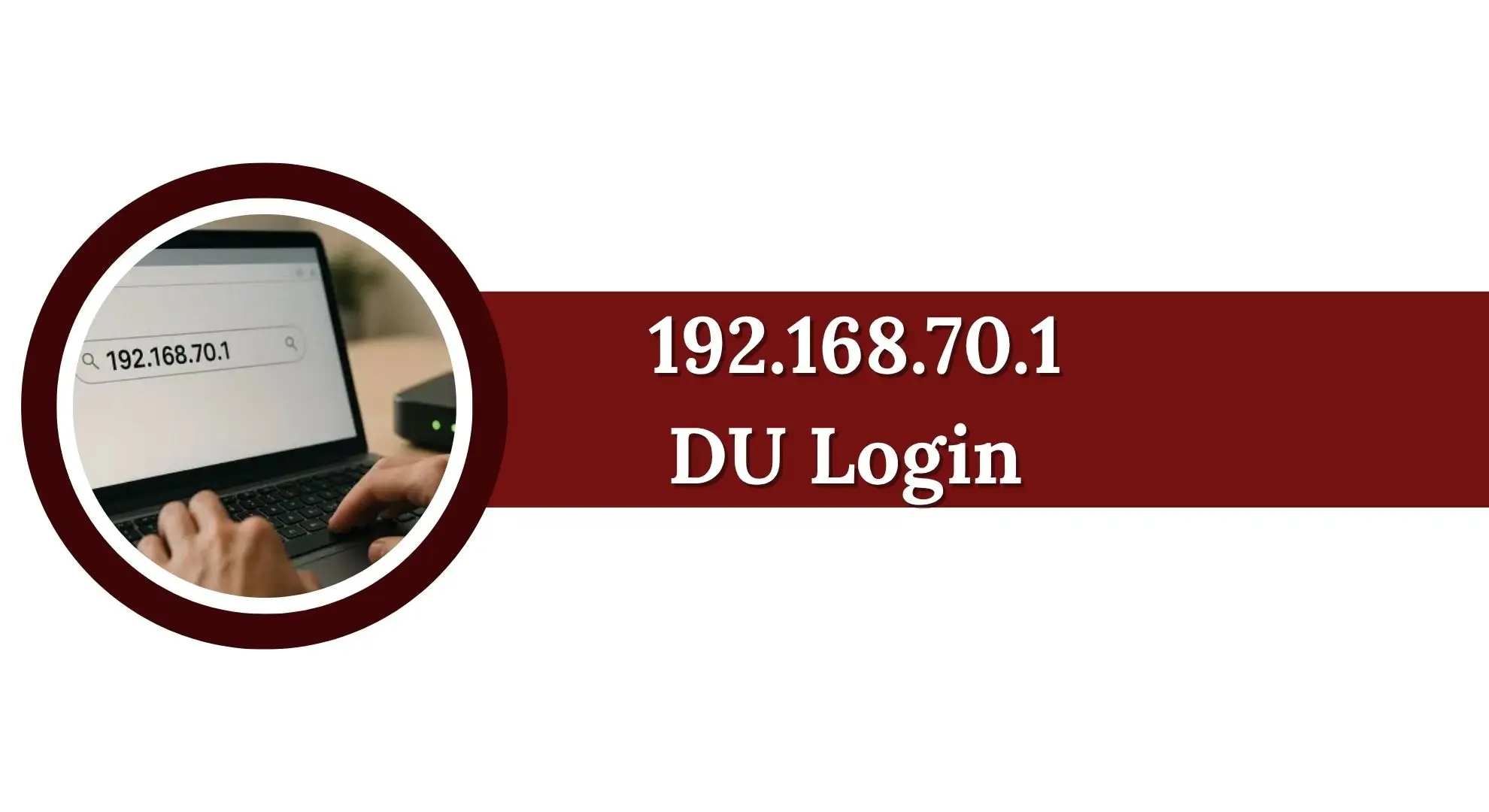
192.168.70.1 DU Login 2027. The 192.168.70.1 DU Login address is used by some DU and ZLT routers to open the router’s local admin panel. From this dashboard, you can manage important network settings such as your Wi-Fi name, Wi-Fi password, connected devices, security settings, and other router options.
To access the login page, connect your phone, laptop, or computer to the router and enter http://192.168.70.1 directly into your browser’s address bar. You will then need to enter the router’s username and password.
It is important to remember that not every DU router uses 192.168.70.1. Some models may use addresses such as 192.168.8.1 or 192.168.1.1. Therefore, if 192.168.70.1 does not open, checking your device’s Default Gateway is the best way to find the correct router address.
What Is 192.168.70.1?
192.168.70.1 is a private IPv4 address used by a router as a local gateway. It is part of the private address range reserved for local networks under RFC 1918.
Unlike a public IP address, 192.168.70.1 cannot normally be accessed directly from the public internet. It is designed for communication between devices connected to the same local network. For example, a router using 192.168.70.1 may give connected devices addresses such as:
- 192.168.70.2
- 192.168.70.3
- 192.168.70.4
- 192.168.70.5
- 192.168.70.100
- 192.168.70.101
In this setup, 192.168.70.1 acts as the gateway. Your phone or computer sends local network traffic to the router, and the router manages communication with the internet.
The address is particularly associated with some ZLT 4G/5G routers and DU-branded devices. However, the exact address depends on the router model and its firmware.
Read Also:
192.168.70.1 DU Login Requirements
Before trying to open the DU router admin page, make sure you have the following:
- A DU or compatible ZLT router
- A phone, laptop, tablet, or computer
- An active connection to the router
- A web browser such as Chrome, Edge, Firefox, or Safari
- The router’s admin username
- The router’s admin password
A wired Ethernet connection is recommended when changing important settings. Wi-Fi can also be used, but the connection may temporarily drop if you save settings that restart the wireless network.
How to Login to 192.168.70.1 DU Router
The login process is simple. Follow these steps carefully.
Step 1: Connect to Your DU Router
First, connect your device to the DU router. You can connect in either of these ways:
- Connect through DU Wi-Fi.
- Use an Ethernet cable between the router and computer.
If you are changing advanced settings, an Ethernet connection is usually better because it reduces the chance of losing your connection while applying changes.
Step 2: Open a Web Browser
Open any modern web browser on your connected device. You can use:
- Google Chrome
- Microsoft Edge
- Mozilla Firefox
- Safari
- Another modern browser
You do not need an internet connection outside the local router network to open the router’s admin page.
Step 3: Enter 192.168.70.1
Click the browser’s address bar and type: http://192.168.70.1
Then press Enter.
Make sure you type the IP address correctly. Do not enter it into Google or another search engine.
A common mistake is typing:
- 192.168.l.70.1
Here, the letter l has been used instead of the number 1.
The correct address is: 192.168.70.1
If your router uses HTTPS, you can also try: https://192.168.70.1
Step 4: Enter the Login Details
After the login page opens, enter your router’s admin username and password. Common login combinations can include:
| Username | Password | Notes |
|---|---|---|
| admin | admin | Common default |
| user | Printed on router | Check router label |
| admin | password | Used on some devices |
| admin | Blank | Some models may use no password |
| admin | 1234 | May be used on older/customized devices |
Important: These credentials are not guaranteed for every DU router. The sticker on your router is the best source for the correct login information.

Step 5: Open the Admin Dashboard
After entering the correct credentials, click Login. You should now see the router’s admin dashboard.
The design can be different depending on the router model and firmware. DU-branded routers may have a customized interface, while ZLT routers may show a mobile-style dashboard designed for 4G and 5G network management.
What Can You Do After 192.168.70.1 Login?
Once you successfully log in, you can manage many router settings. Depending on your model, the admin panel may allow you to:
- Change the Wi-Fi name
- Change the Wi-Fi password
- View connected devices
- Manage wireless settings
- Configure 2.4 GHz Wi-Fi
- Configure 5 GHz Wi-Fi
- Check signal strength
- View data usage
- Change security settings
- Manage network settings
- Configure port forwarding
- Update firmware
- Change administrator credentials
- Adjust LTE settings
- Manage available 4G/5G bands
- Restart the router
- Restore factory settings
Some options may not be available on every DU or ZLT router.
192.168.70.1 DU Default Username and Password
There is no single username and password that works on every router using 192.168.70.1.
Some commonly seen combinations include:
- Username: admin
- Password: admin
Other possibilities include:
- Username: user
- Password: Printed on the router
Some older or customized devices may use:
- Username: admin
- Password: password
Another possibility is:
- Username: admin
- Password: 1234
Some devices may have a blank password.
Before trying several default combinations, check the sticker on the back, bottom, or side of the router. The manufacturer or service provider may print the exact username, password, Wi-Fi name, and router address there.
How To Change DU Wi-Fi Name and Password
Changing the default Wi-Fi password is one of the first things you should do after accessing the router.
Change the Wi-Fi Name
Follow these general steps:
- Log in to 192.168.70.1.
- Open Wi-Fi Settings or Wireless Settings.
- Select the 2.4 GHz or 5 GHz network.
- Find the SSID or Wi-Fi Name field.
- Enter your new Wi-Fi name.
- Click Save or Apply.
If your router has separate 2.4 GHz and 5 GHz networks, you may need to update each one separately.
Change the Wi-Fi Password
To change your wireless password:
- Log in to the router admin panel.
- Open Wi-Fi Settings or Wireless.
- Select the required wireless network.
- Open the security section.
- Find the password or passphrase field.
- Enter a new strong password.
- Click Save or Apply.
After the change, your devices may disconnect from Wi-Fi. Reconnect them using the new password.
How to Change the DU Router Admin Password
The router administrator password is different from the normal Wi-Fi password. The Wi-Fi password controls access to your wireless network, while the admin password protects access to the router’s configuration panel.
To change the admin password:
- Open http://192.168.70.1.
- Log in with your current credentials.
- Go to System, Administration, or Account Management.
- Find the password change option.
- Enter your current password.
- Enter the new password.
- Confirm the new password.
- Click Save or Apply.
Use a strong password that is difficult to guess. A password with at least 12 characters, including letters, numbers, and symbols, is a good choice.
Avoid using easy information such as your name, phone number, home address, or date of birth.
How to Access 192.168.70.1 on Different Devices
Windows PC
Connect your Windows computer to the DU router.
Open Chrome or Edge and enter: http://192.168.70.1
If it does not open, use Command Prompt:

- Press Windows + R.
- Type
cmd. - Press Enter.
- Type
ipconfig. - Press Enter.
- Find Default Gateway.
If the Default Gateway is 192.168.70.1, that is the address you should use.
macOS
On a Mac:
- Open System Settings.
- Select Network.
- Choose your active Wi-Fi or Ethernet connection.
- Open the connection details.
- Look for the Router or gateway address.
If it shows a different IP, use that address instead of 192.168.70.1.
Android
The exact menu can vary by Android version. Generally:
- Open Settings.
- Open Wi-Fi.
- Tap the connected DU network.
- Open network details or advanced settings.
- Look for Gateway or Router.
iPhone or iPad
On iOS:
- Open Settings.
- Tap Wi-Fi.
- Tap the information icon beside your connected network.
- Find the Router field.
The address shown there is normally your local router gateway.
192.168.70.1 Not Working? Try These Fixes
Sometimes the login page does not open. This does not always mean that your router is faulty. Try the following solutions.
1. Check the IP Address
The most common problem is using the wrong gateway. Your DU router may use:
- 192.168.70.1
- 192.168.8.1
- 192.168.1.1
Check the Default Gateway on your device. If your device shows 192.168.8.1, use that address instead.
2. Check Your Connection
You must be connected to the router’s local network.
- If you are using a phone, make sure you are connected to DU Wi-Fi instead of mobile data.
- If you are using a computer, check that the Ethernet cable or Wi-Fi connection is active.
3. Check for Typing Errors
Make sure the address is exactly:
- 192.168.70.1
Do not use:
- 192.168.l.70.1
- 192.168.70.l
- 192.168.1.70
- 192.168.70.01
A single incorrect character can prevent the page from opening.
4. Disable VPN
A VPN or proxy can sometimes interfere with access to local router addresses. Temporarily disable your VPN and try opening the router page again.
5. Try Another Browser
Browser cache, extensions, or redirects can sometimes cause problems. Try:
- Chrome
- Edge
- Firefox
- Safari
- Private or Incognito mode
6. Restart the Router
Turn off the router, wait around 10–15 seconds, and turn it on again. Allow the router to fully restart before trying the admin page again.
7. Use an Ethernet Cable
If Wi-Fi is unstable, connect your computer directly to the router using an Ethernet cable. This can provide a more stable connection while accessing or changing router settings.
How to Find the Correct Router IP Address
If 192.168.70.1 does not work, finding your actual gateway is the best solution.
Windows
Open Command Prompt and type:
ipconfig
Look for:
Default Gateway
For example:
Default Gateway: 192.168.8.1
In this case, use:
macOS
Go to:
System Settings → Network → Your Connection → Details
Then check the Router field.
Android and iPhone
Open your connected Wi-Fi network’s details and look for:
Gateway or Router
The displayed address is the address you should enter into your browser.
Linux
Open a terminal and use the route information to identify the default gateway.
The gateway shown by your operating system represents the router currently managing your local network.
ZLT Router Login at 192.168.70.1
Several ZLT routers are associated with 192.168.70.1, including some 4G and 5G models. The exact interface depends on the model and firmware. After logging in, ZLT users may find options for:
- Network status
- Signal strength
- Mobile data
- Wi-Fi settings
- Connected devices
- LTE settings
- 5G settings
- Band settings
- SMS management
- System settings
- Firmware updates
Some ZLT models also provide advanced network options for users who want to manage LTE or 5G band selection.
ZLT S10 and S12 Pro Factory Reset
If you need to restore a compatible ZLT router to factory settings:
- Keep the router powered on.
- Find the Reset button.
- Use a pin or paperclip if the button is recessed.
- Press and hold the button for around 10 seconds.
- Wait for the LEDs to flash or the router to restart.
- Release the button.
- Wait around 60–90 seconds for the restart to finish.
- Reconnect to the router.
- Try accessing 192.168.70.1 again.
A factory reset removes your custom settings, so only use it when necessary.
ZLT X28 5G Reset Procedure
For a compatible ZLT X28 5G router:
- Make sure the router is powered on.
- Locate the Reset button.
- Press and hold it for about 10 seconds.
- Wait for the router to restart.
- Allow the Wi-Fi and mobile network indicators to become stable.
- Reconnect to the default network.
- Open 192.168.70.1.
- Use the credentials printed on the device label.
The exact reset behavior can vary with firmware, so check the device instructions if the normal procedure does not work.
DU Router Factory Reset
A factory reset can help when you have forgotten the admin password. Generally, you can reset the router as follows:
- Keep the DU router powered on.
- Locate the recessed Reset button.
- Use a pin or paperclip.
- Press and hold the button for around 5–10 seconds.
- Watch for flashing lights or a restart.
- Release the button.
- Wait for the router to reboot completely.
- Reconnect to the default Wi-Fi network.
- Open the router’s gateway address.
- Reconfigure the router.
Some models may require a slightly different reset time.
Important: A factory reset removes custom Wi-Fi settings and other configuration changes. If your DU broadband connection requires PPPoE credentials or other settings, you may need those details again after resetting.
DU Router Login for Different Models
Not all DU routers use the same IP address. For example, some devices may use 192.168.70.1, while other routers can use different private addresses.
DU Router Login All Models
DU provides different router models for home and office internet connections in the UAE. Because these devices can use different gateways and login details, always check the router label if the standard credentials do not work.
DU Home Wireless 5G (ZLT X21)
The DU Home Wireless 5G ZLT X21 can be accessed through 192.168.70.1. To log in and change its Wi-Fi settings:
- Connect your phone, laptop, or computer to the DU router.
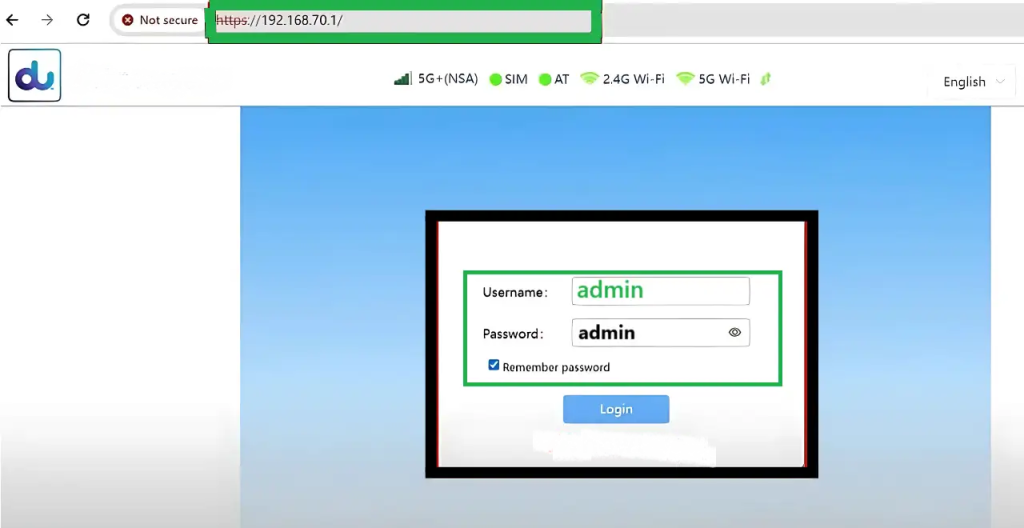
- Open a web browser and enter http://192.168.70.1.
- Enter the default login details:
- Username:
user - Password: Check the sticker on the back of the router.
- Username:
- Click Login.
- Go to Wi-Fi Settings > WiFi-2.4G Settings for the 2.4 GHz network.
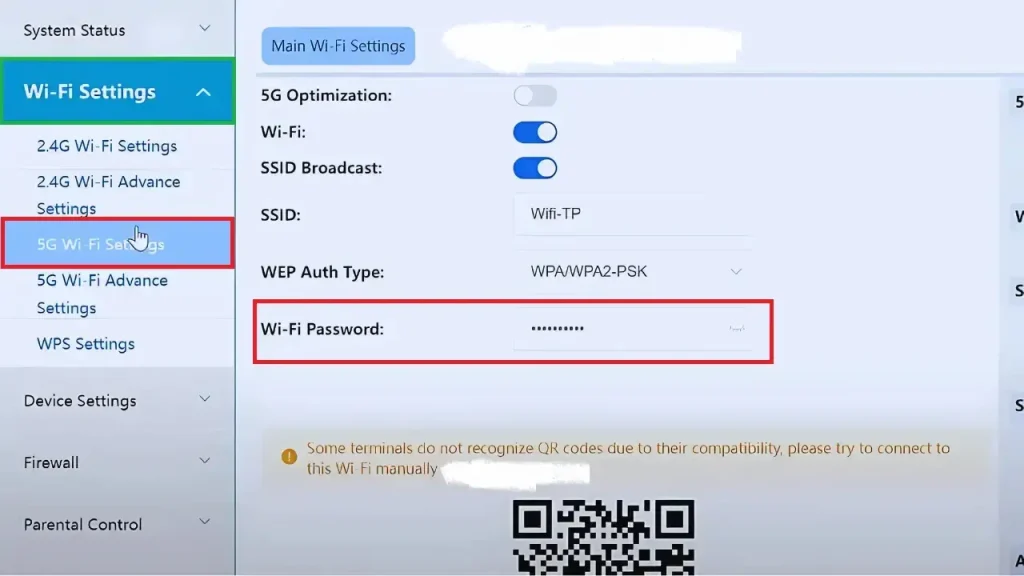
- For the 5 GHz network, open WiFi-5G Settings.
- Change the SSID (Wi-Fi name) and password.
- Click Save to apply the changes.
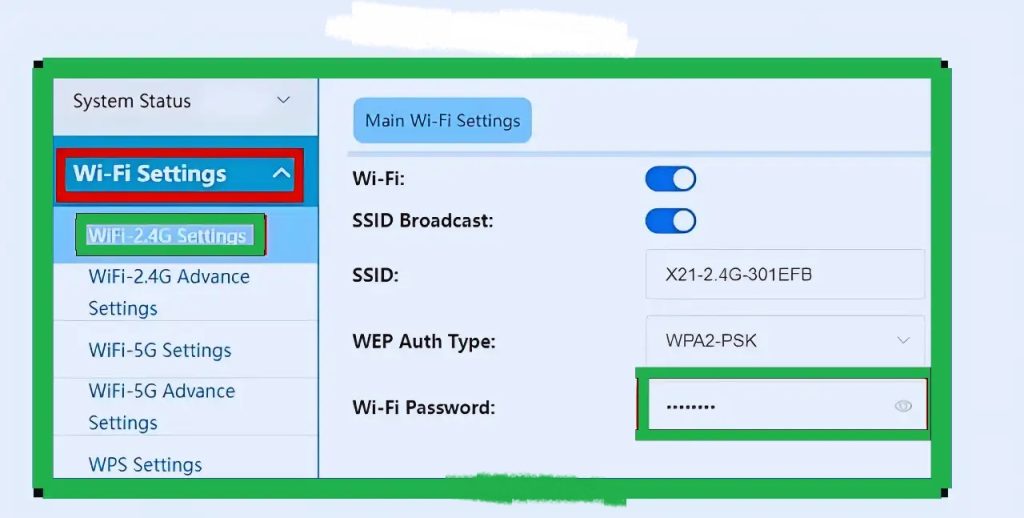
The exact menu names can vary slightly with firmware, but the router label should provide the correct login information for your device.

D-Link DWR-M960 4G LTE
The D-Link DWR-M960 uses a different local gateway, so it should not be accessed through 192.168.70.1. The commonly used address is 192.168.0.1.
- Connect to the D-Link router.
- Open your browser and enter http://192.168.0.1.
- Enter:
- Username:
admin - Password:
admin
- Username:
- Go to Settings > Wi-Fi > Basic.
- Select either the 2.4 GHz or 5 GHz network.
- Enter your preferred Wi-Fi name in the SSID field.
- Click Save & Apply.
- Next, open Settings > Wi-Fi > Security.
- Set your new Wi-Fi password in the Pre-Shared Key field.
- Click Save & Apply again.
Nokia FastMile 5G Gateway
Some Nokia FastMile 5G Gateway devices use 192.168.1.1 rather than 192.168.70.1.
- Connect your device to the Nokia router.
- Open a browser and enter 192.168.1.1.
- Enter the default login details:
- Username:
admin - Password: Printed on the router.
- Username:
- Go to Network > Wi-Fi Networks.
- Select the 2.4 GHz or 5 GHz network.
- Update the SSID Name to change the Wi-Fi name.
- Update the WPA Key to change the Wi-Fi password.
- Click Save Changes.
These examples show why it is important to confirm your router’s actual gateway before trying to log in.
192.168.70.1 Default Username and Passwords
The following are common login combinations that may be found on compatible DU or related router models. They are not universal, so check the sticker on your router first.
| Username | Password | Notes |
| admin | admin | Common default for some DU routers |
| user | Printed on router | Usually found on a sticker on the back or side |
| admin | password | Alternative login used on some older configurations |
| admin | (blank) | Leave the password field empty if the device specifies no password |
| admin | 1234 | May be used on some customized or older configurations |
Important: If you have already changed the router password, the original default credentials may no longer work. In that case, use your current credentials or consider a factory reset if you have no other way to recover access.
DU Home Wireless 5G / ZLT Devices
For a compatible device using 192.168.70.1:
- Connect to DU Wi-Fi.
- Open your browser.
- Enter 192.168.70.1.
- Enter the username and password.
- Open the dashboard.
- Go to Wi-Fi settings.
- Choose 2.4 GHz or 5 GHz.
- Change the SSID or password.
- Click Save.
The exact username and password should be confirmed from the router label.
D-Link DWR-M960
The D-Link DWR-M960 may use:
192.168.0.1
rather than 192.168.70.1.
Its default credentials and menu structure can also differ.
Nokia FastMile 5G Gateway
Some Nokia FastMile devices may use:
192.168.1.1
rather than 192.168.70.1.
This shows why checking the actual gateway on your device is important.
192.168.70.1 and Wi-Fi Security
Keeping default router credentials unchanged can create a security risk. After accessing your router, consider changing both:
- Admin password
- Wi-Fi password
For Wi-Fi security, use WPA2 or WPA3 when available. Avoid old security standards such as WEP when a newer option is available. A strong Wi-Fi password should:
- Be difficult to guess
- Use a mix of characters
- Avoid personal information
- Not be the same as your admin password
It is also better to use a Wi-Fi name that does not reveal personal information about your home or family.
Why Does 192.168.70.1 Work Only on My Network?
192.168.70.1 is a private address. It is intended for local network communication. When your computer connects to the router, the router may assign it an address such as:
- 192.168.70.2
The router itself may use:
- 192.168.70.1
This allows the devices to communicate locally. The router also uses NAT, or Network Address Translation, to manage communication between private devices and the public internet.
This is why entering 192.168.70.1 while connected to another Wi-Fi network will normally not open your DU router’s admin page.
192.168.70.1 vs 192.168.1.1 vs 192.168.8.1
These are all private IP addresses that can be used by routers.

| IP Address | Common Use |
| 192.168.70.1 | Some ZLT and DU routers |
| 192.168.1.1 | Common on many routers |
| 192.168.8.1 | Used by some 4G/5G routers |
| 192.168.0.1 | Used by many networking devices |
There is no rule saying that every DU router must use 192.168.70.1.
The Default Gateway shown by your connected device is the most useful value when there is a conflict between different instructions.
Common 192.168.70.1 Login Problems
Wrong Username or Password
- If the login page appears but your credentials are rejected, check the router sticker.
- If you previously changed the password, the original default password may no longer work.
Login Page Is Blank
- Try refreshing the page, opening an Incognito window, or using another browser.
- You can also restart the router.
Connection Timed Out
- This can happen when your device is not connected to the correct router.
- Check your Wi-Fi or Ethernet connection and confirm the Default Gateway.
192.168.70.1 Refuses the Connection
- Try both HTTP and HTTPS if your router supports HTTPS.
- Also confirm that 192.168.70.1 is actually your active gateway.
Internet Works but Admin Page Does Not
- Your internet connection can still work even if you are using the wrong local gateway address.
- Check the gateway from your device instead of assuming that 192.168.70.1 is correct.
What Happens After a Factory Reset?
A factory reset returns the router to its original configuration. This can include:
- Default Wi-Fi name
- Default Wi-Fi password
- Default admin credentials
- Default gateway
- Original network settings
- Removed custom settings
You may need to configure the Wi-Fi network again. If your DU service requires special broadband settings, make sure you have the required information before resetting the router.
Important Tips Before Changing Router Settings
Before making major changes at 192.168.70.1, keep these points in mind:
- Write down your current settings.
- Save your existing configuration if the router supports backups.
- Use an Ethernet cable for important changes.
- Do not switch off the router during a firmware update.
- Do not share your admin password.
- Use a strong Wi-Fi password.
- Check the router label before trying random credentials.
- Do not factory reset the router unless necessary.
- Confirm the correct gateway before troubleshooting.
- Save changes after editing settings.
FAQs
What is 192.168.70.1 DU Login?
Ans: 192.168.70.1 DU Login is the local router login address used by some DU and ZLT devices. It opens the router’s admin panel where users can manage Wi-Fi and network settings.
What is the default username and password for 192.168.70.1?
Ans: Some compatible routers use admin/admin, while others use user with a password printed on the router. Other combinations may exist depending on the model and firmware.
How do I access 192.168.70.1?
Ans: Connect your device to the router, open a browser, enter http://192.168.70.1 in the address bar, and enter the correct administrator credentials.
Why is 192.168.70.1 not opening?
Ans: Your router may use a different gateway. Check the Default Gateway on your phone, computer, or tablet. Also confirm that you are connected to the correct Wi-Fi network.
Can I access 192.168.70.1 without internet?
Ans: Yes. Because it is a local private IP address, you normally only need to be connected to the router’s local network. An active internet connection is not required to open the local admin page.
Can I use 192.168.70.1 on mobile?
Ans: Yes. Connect your phone to the router’s Wi-Fi network and enter http://192.168.70.1 into the browser address bar.
What should I do if I forgot my DU router password?
Ans: First check whether the password is printed on the router. If you previously changed the password and cannot recover it, a factory reset may restore the default login details. Remember that resetting the router will remove custom settings.
Does every DU router use 192.168.70.1?
Ans: No. DU routers can use different gateway addresses depending on the model and firmware. Some may use 192.168.70.1, while others can use 192.168.8.1 or 192.168.1.1.
How can I change my DU Wi-Fi password?
Ans: Log in to the router admin panel, open Wi-Fi or Wireless Settings, enter your new password, and select Save or Apply. Your devices will need to reconnect using the new password.
Is it safe to use 192.168.70.1?
Ans: The IP address itself is simply a private local gateway. Security depends on how your router is configured. Changing default admin credentials and using strong Wi-Fi security can improve protection.
Conclusion
The 192.168.70.1 DU Login page gives users access to the local administration panel of compatible DU and ZLT routers. Once logged in, you can manage Wi-Fi names, passwords, connected devices, network settings, security options, and other features supported by your router.



About The Author